Infinite™ Recipe Designer Mobile
Mobile Recipe Design and Remote Integration
Infinite™ Recipe Designer Mobile (I-RD Mobile) is a mobile app that allows creating, importing, editing, and exporting recipes by connecting to authorized servers exclusively through Cloudflare authentication. From compatible iOS and Android devices, users can securely work with palletizing and depalletizing recipes, leveraging user and server permissions defined in the Infinite™ Industrial Automation Suite (I-IA Suite).
I-RD Mobile acts as the portable companion to the Infinite™ Recipe Designer Web (I-RD Web) application. It lets engineers, designers, and automation professionals adjust recipe parameters, layouts, and layer structures remotely, while still supporting local JSON-based projects when needed. Remote servers are never discovered by Wi-Fi scanning; instead, they are explicitly configured and exposed through DPPS infrastructure and Cloudflare tunnels, simplifying connectivity and improving security.
Key Benefits & Capabilities
- Create or Import Projects: Start from scratch on your device or open an existing recipe from a JSON file or an authorized server.
- Customizable Parameters: Adjust container, product sizes, and positioning logic to match your real-world palletizing or depalletizing process.
- Pre-Defined Layout Patterns: Use templates and refine them for precise industrial applications.
- Advanced Editing Tools: Modify, align, duplicate, and sequence jobs and layers directly from your mobile device.
- Complex Grouping & Linking: Manage multi-product pickups and multi-drop sequences with clear, visual tools.
- 3D Visualization & Simulation: Preview layouts and simulate job sequences to validate your design before exporting.
- Product Personalization: Customize product appearance with colors and labels for clearer visualization.
- Seamless Sharing & Export: Export recipes as JSON or upload them back to authorized servers in the DPPS ecosystem.
With I-RD Mobile, automation projects become more flexible and collaborative. Teams can iterate on recipes from the office, the plant floor, or remotely, reducing downtime and enabling faster adjustments to palletizing and depalletizing designs from any authorized mobile device.
Visit the DePeuter Packaging Solutions website to explore the full I-IA Suite and discover how I-RD Mobile can take your operations to the next level.
Privacy Policy
Effective Date: June 12, 2025
Overview
This Privacy Policy describes how I-RD Mobile handles your information when you use it.
Information We Collect
We do not collect, store, or share any personal information from users of I-RD Mobile. Authentication data and server access are handled by your organization’s infrastructure and DPPS services, but the app itself does not store personal profiles or analytics.
Usage Data
I-RD Mobile does not collect any usage data or analytics.
Cookies
I-RD Mobile does not use cookies or similar tracking technologies.
Third-Party Services
I-RD Mobile communicates with authorized servers through secure channels (for example, Cloudflare tunnels) defined by your organization and DPPS. It does not integrate with third-party services that collect personal information for marketing or analytics.
Children’s Privacy
The App is not intended for use by children under the age of 13. If we become aware we’ve collected personal data from a child, we will delete it.
Changes to This Privacy Policy
We may update this Privacy Policy from time to time. We will notify you of any changes by posting the new policy on this page.
Contact Us
If you have questions about this Privacy Policy, please contact us:
Email: itsupport@depeuter.com
Terms & Conditions
Last updated: June 12, 2025
These Terms and Conditions constitute a legally binding agreement between you, the End-User, and DePeuter Packaging Solutions (DPPS) for the use of the I-RD Mobile.
I-RD Mobile is part of the I-IA Suite and acts as the mobile extension of the I-RD Web application. It is designed to allow users to create, import, edit, and export palletizing and depalletizing recipes, including connecting to authorized servers exposed through secure Cloudflare tunnels or equivalent DPPS-approved mechanisms.
By accessing or using I-RD Mobile, you agree to be bound by these Terms and Conditions. If you do not agree, you may not use the software.
Disclaimer of Warranty
I-RD Mobile is provided "as is" and "as available" without warranties of any kind, either express or implied, including but not limited to warranties of merchantability, fitness for a particular purpose, and non-infringement.
Limitation of Liability
To the maximum extent permitted by applicable law, DPPS and its developers shall not be liable for any indirect, incidental, special, consequential, or punitive damages, or any loss of profits or revenues, whether incurred directly or indirectly, or any loss of data, use, goodwill, or other intangible losses, resulting from your access to or use of the software.
No Obligation of Support
DPPS is not obligated to provide maintenance, technical, or other support for I-RD Mobile. The End-User is encouraged to report bugs and suggestions to improve the software.
Responsibility of Use
You are solely responsible for ensuring the compatibility of I-RD Mobile with your systems and for validating all output before implementation in industrial environments. DPPS is not responsible for errors, malfunctions, or damages caused by improper use, misconfiguration, or lack of validation of recipes created or modified in the I-RD Mobile.
Intellectual Property
All content and code within I-RD Mobile remain the intellectual property of DPPS and its authors. Any modification or redistribution must credit the original authors and clearly state that the software is not the original version.
Governing Law
These Terms are governed by and construed in accordance with the laws of the State of Texas, USA. Any disputes arising out of these Terms shall be resolved exclusively in the courts located in Harris County, Texas.
Electronic Agreement
By installing and using the I-RD Mobile, you waive any and all defenses you may have based on the electronic form of these Terms and Conditions and the lack of signing by the parties to execute these Terms.
Severability
If any provision is found to be invalid or unenforceable, the remaining provisions shall remain in full force and effect.
Contents
Infinite™ Recipe Designer Mobile Help
I-RD Mobile Revision: 2.2.0
System Info
- Copyright © 2025 - Depeuter Packaging Solutions. I-RD Mobile – DPPS. All rights reserved.
- Logo, icons and images are licensed under a Creative Commons Attribution license.
- Made with React Native and JavaScript by DPPS developers.
I-RD Mobile shows project content as a list of existing layers and each layer content as a list of jobs; where layers and jobs are numbered.
Main Sections
The software is divided into several screens and sections. Some screens might include a different set of components depending on the type and content of the project. A general summary of each section is presented below.
-
Main Screen
Provides options to work with project data (Create, Upload) and access software resources (Help and Legal documentation). It also includes options to choose the language of the app's content (Spanish or English). -
Project Settings
Shows the information of interest about a project once opened, allowing you to edit the name and type of the project among other settings. It is divided into sections for easy location and understanding: Project Setup, Container Data and Product Data. -
Project Content
Displays the work area with its bottom tools bar and includes a top bar with links to access the list of layers and the simulation module. -
Work Area
Shows a representation of the distribution and orientation of the products by layer of the project. The work area is located in the center section of the screen and is bounded by a grid whose vertical and horizontal lines help with alignment and positioning. It displays a visual representation of the products within the selected layer and updates each time the user executes an operation to modify the content. At the bottom, there is a tools bar with options to transform the layer content. -
Layers List
Lists the existing layers and provides tools to manage them (Add, Remove, Duplicate) and build projects quickly. It also allows defining the order of the layers, controlling separators, and managing jobs per layer (Add, Duplicate, Remove, Reorder). -
Simulation
Shows a perspective representation of the entire project. It contains a toolbar that allows simulating each robot job step-by-step, customizing product appearance, controlling animation speed, visualizing the end result, and confirming each layer’s content.
Work Area
Rules for the work area
- When adding jobs, to draw new products the system uses as default the upper left corner of the grid within the work area, otherwise it looks for the next area with enough empty space to properly use the function.
- Once added to the work area, if a job contains more than one product, all products will move and rotate in unison as a group.
- Products can be dragged and released in a new spot to set new coordinates while its group does not collide with other items.
- Products can not be dragged out of the work area further than the offset lines defined for the project's container.
- Products can be rotated as long as their final position after rotation does not make them collide with other items.
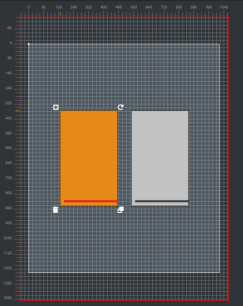
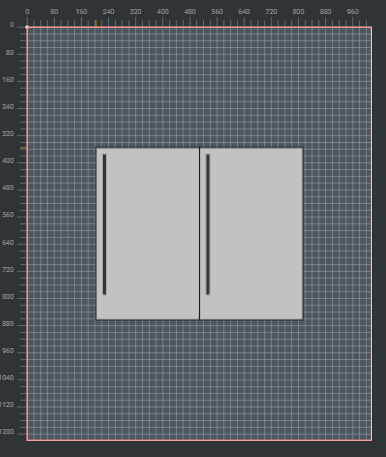
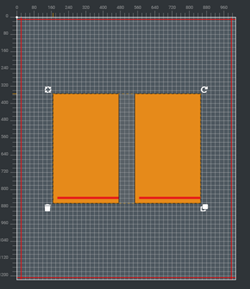
IMPORTANT NOTE: The container's offsets move the layout's edges on all its four sides, and controls the distance to which a product can be placed from the physical boundaries of the container. An offset is measured per coordinate's axis (x or y), from the boundary of the container (which is the point 0) to the outer edge of the layout. The outer edge of the layout could be internal or external to the container's area, depending if the offset's value provided is positive or negative respectively. The edges of the layout overlap the container boundaries when the offset values equals 0. To be allowed offset's values must be smaller than the half of the product's width and its location is represented in the work area by red lines (see sample pictures).
Group of functions that can be applied to the layer's content:
- Rotate 90 degrees the layout defined by the selected area*
- Rotate 90 degrees each active item under the selected area*
- Duplicate all items inside the selected area*
- Remove the active items under the selected area*
- Expand (add more jobs) or restrict (reset) the active items with each selection*
- Decrease or increase the X or Y coordinate of a selected job*
- Rotate clockwise or counterclockwise through a 90 degree angle of a selected job*
- Adjust Robot movement approach to use when placing the selected job*
- Flip horizontally or vertically the content of the selected layer
- Rotate 180 degrees the content of the selected layer
- Rotate 90 degrees the content of the selected layer***
- Remove the content for the selected layer
- Select all the content with in the shown layer
- Top, bottom, right and left align selected products**
- Horizontally and vertically align the selected products by their center**
- Equidistant horizontally or vertically distribute the selected products**
- Group and ungroup the selected products in a job**
- Link the selected drop jobs in a single pick or unlink them into individual picks per drop if previously linked**
- Select a pattern to be applied. Applied pattern will be highlighted, if any. ****
- Export and share the opened project as a json file.
IMPORTANT NOTES:
* Option available when at least one product/job is selected.
** Option available when more than one product/job is selected.
*** Option available when the layer is squared (width equals length).
**** Option available when the layer has the capacity to contain more than one product.
The app also includes functions related to the project setup and general data transference such as:
- Create a new project (Main Screen)
- Import a project from an external json file (Main Screen)
- Rename and setup the basic properties of the opened project (Settings Screen)
- Show and edit general data of the project's container and products (Settings Screen)
Main Design Principle
The 'Robot Approach' or 'Job Start Point' is one of the most important design principles to follow when designing an infeed project. The movement approach tells the robot what's the right entrance point and angle it must use to execute each product placement inside the placements sequence designed to avoid it colliding with the products already placed inside the container. Outfeed projects do not require the user to specify the robot movement approach, it will always move straight up when executing a job.
Make sure to specify the right robot approach for each product placement inside the sequence when creating the design of an infeed project. Diagonal movements are the best approaches to avoid products collisions when doing a placement. Robot approaches are implemented as follows:
Robot Approach with its placement sequence
Move to Top Left Corner 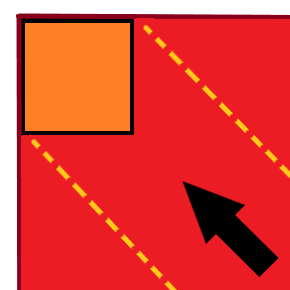 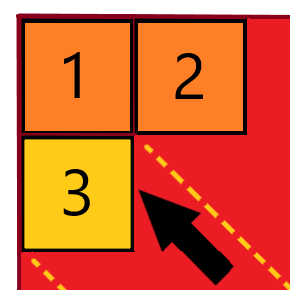 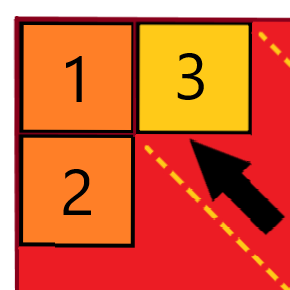 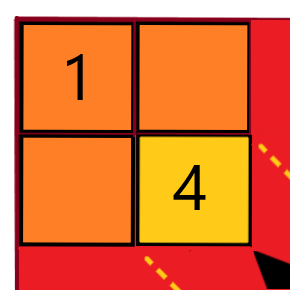 |
Diagonal movement oriented from the bottom right corner of the quadrant limits to the top left corner. When using this approach to place a product the design should not have another item, or part of another item occupying the area bounded by the top and left sides of the current item (coordinates for all other items already placed must have a minor value in the X and Y axes). |
Move to Top Right Corner 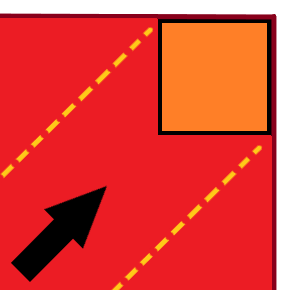 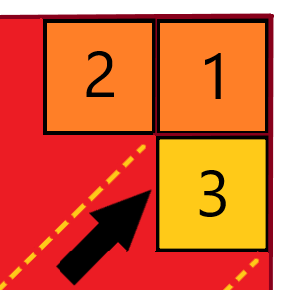 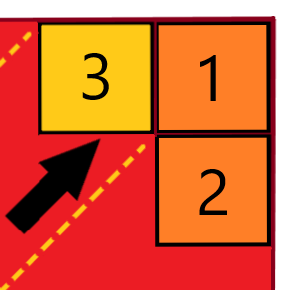 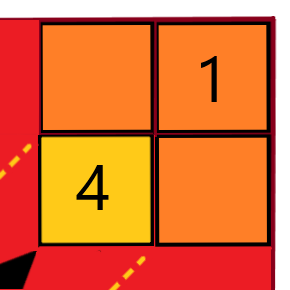 |
Diagonal movement oriented from the bottom left corner of the quadrant limits to the top right corner. When using this approach to place a product the design should not have another item, or part of another item occupying the area bounded by the top and right sides of the current item (coordinates for all other items already placed must have a bigger value in the X axis and a minor value in the Y axis). |
Move to Bottom Right Corner 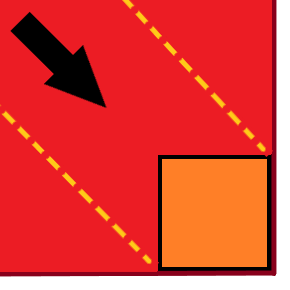 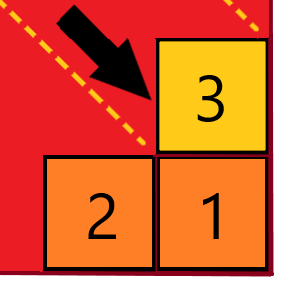 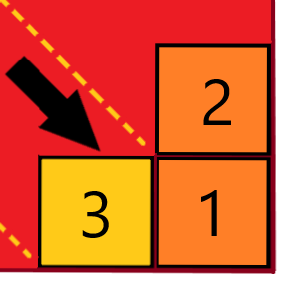 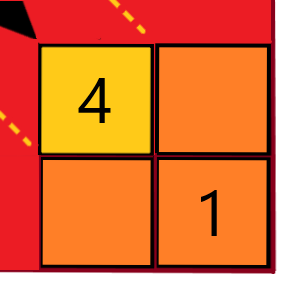 |
Diagonal movement oriented from the top left corner of the quadrant limits to the bottom right corner. When using this approach to place a product the design should not have another item, or part of another item occupying the area bounded by the bottom and right sides of the current item (coordinates for all other items already placed must have a bigger value in the X and Y axes). |
Move to Bottom Left Corner 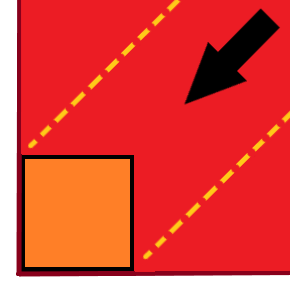 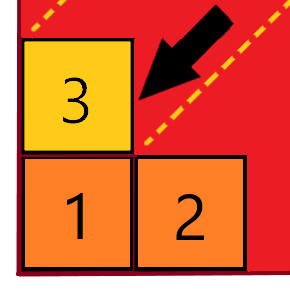 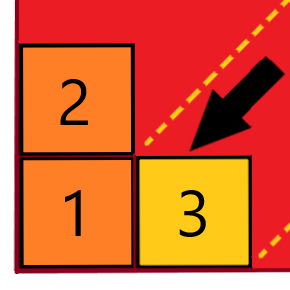 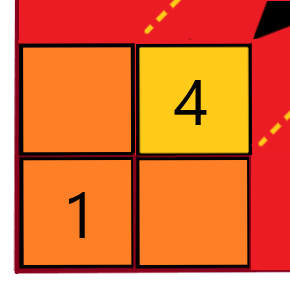 |
Diagonal movement oriented from the top right corner of the quadrant limits to the bottom left corner. When using this approach to place a product the design should not have another item, or part of another item occupying the area bounded by the bottom and left sides of the current item (coordinates for all other items already placed must have a minor value in the X axis and a bigger value in the Y axis). |
Move to Left Side 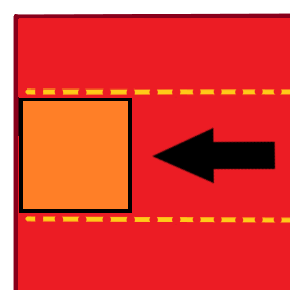 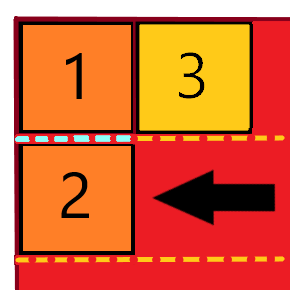 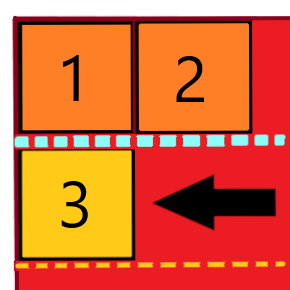 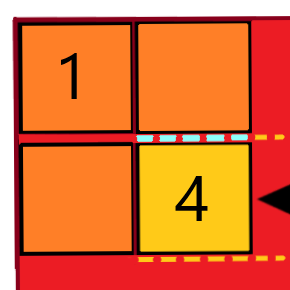 |
Horizontal movement entering from the right side of the quadrant with a straight direction to the left side using the specified value for the Y axis. When using this approach to place a product the design should not have another item, or part of another item occupying the area bounded by the top and bottom sides of the current item (coordinates for all other items already placed should have a minor value in the X axis or enough gap when having a bigger or minor value in the Y axis). |
Move to Top Side 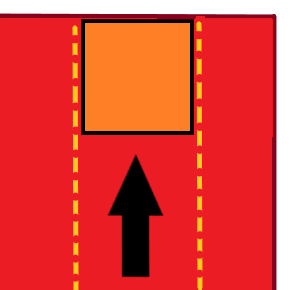 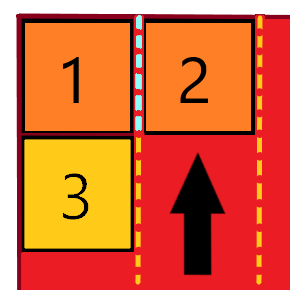 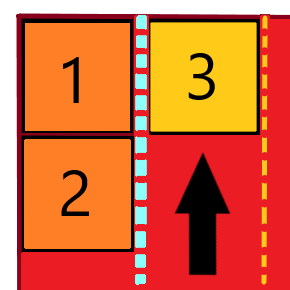 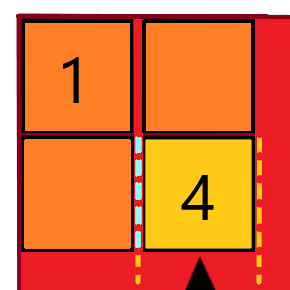 |
Vertical movement entering from the bottom side of the quadrant with a straight direction to the top side using the specified value for the X axis. When using this approach to place a product the design should not have another item, or part of another item occupying the area bounded by the left and right sides of the current item (coordinates for all other items already placed should have a minor value in the Y axis or enough gap when having a bigger or minor value in the X axis). |
Move to Right Side 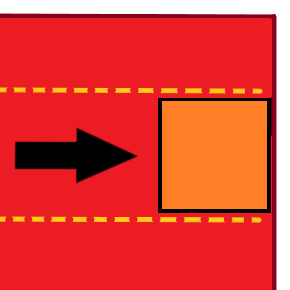 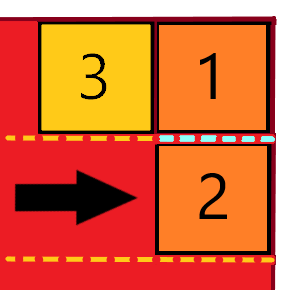 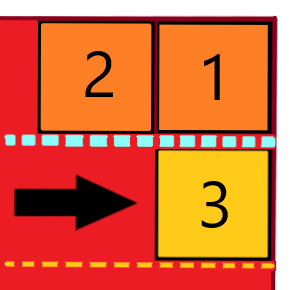 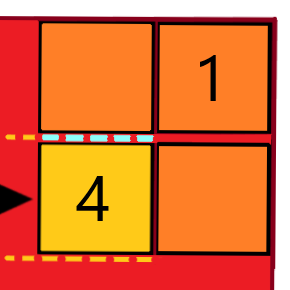 |
Horizontal movement entering from the left side of the quadrant with a straight direction to the right side using the specified value for the Y axis. When using this approach to place a product the design should not have another item, or part of another item occupying the area bounded by the top and bottom sides of the current item (coordinates for all other items already placed should have a bigger value in the X axis or enough gap when having a bigger or minor value in the Y axis). |
Move to Bottom Side 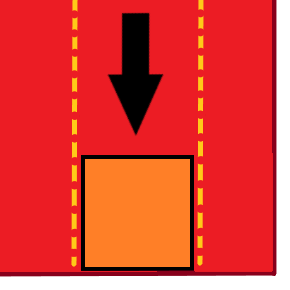 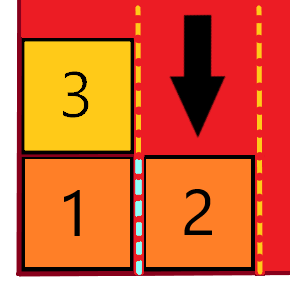 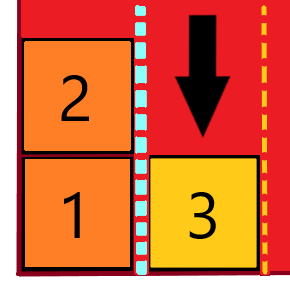 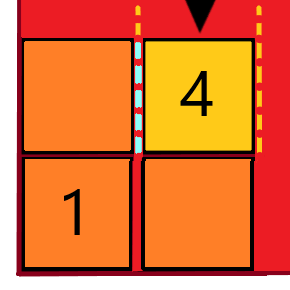 |
Vertical movement entering from the top side of the quadrant with a straight direction to the bottom side using the specified value for the X axis. When using this approach to place a product the design should not have another item, or part of another item occupying the area bounded by the left and right sides of the current item (coordinates for all other items already placed should have a bigger value in the Y axis or enough gap when having a bigger or minor value in the X axis). |
Move Down 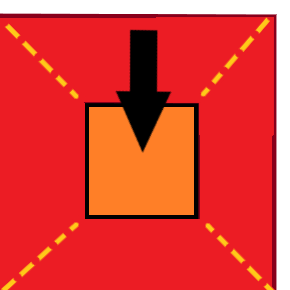 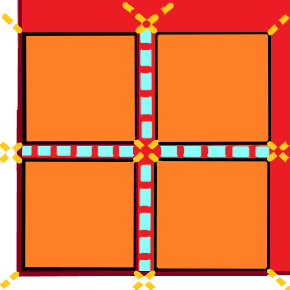 |
Direct robot movement down from a bigger Z coordinate in the specified X and Y product's placement coordinates. When using this movement approach to place a product you have more freedom to design the placements sequence but gaps in between products is a MUST because the probability of collisions increase considerably. Living gaps ensure there will be no collisions if a product comes with factory imperfections altering the specified dimensions. (coordinates for X and Y axes are exact and do not give space to errors). |
Simulation
In this section of the tool, an automatic simulation is generated according to the project information. The simulation takes into account different factors that are described below:
- Container (Pallet by default) dimensions (Width x Length x Height)
- Product dimensions (Width x Length x Height)
- Number of layers to be fulfilled for completing the project
- Number of robot jobs per layer to place the corresponding products
- Separators between layers and before the very first layer
Functions to manage the display of the simulation
- Decrease or increase the speed of the simulation
- Start, Stop or Pause the simulation of the project
- Edit Project's Job number from where to start the simulation.
- Show the current job over the total job amount in the project
- Show the current layer over the total number of layers
- Show the current job over the total jobs amount in a layer
- Display functions to customize the product view.
Functions to customize the product appearance
- Choose a product: It allows to select the type of object to be shown.
- Choose a Label: It allows to set product labels or to remove the image set for the selected label.
- Choose an object color: It allows to select the color for the texture of the products drawing.
- Enable accent: It allows to add or remove accents for the product type selected. For example the tape if the product selected is a box, or the handle if the product selected is a tank
Below is an example of how a simulation looks for a project containing 2 layers and 6 jobs per layer.
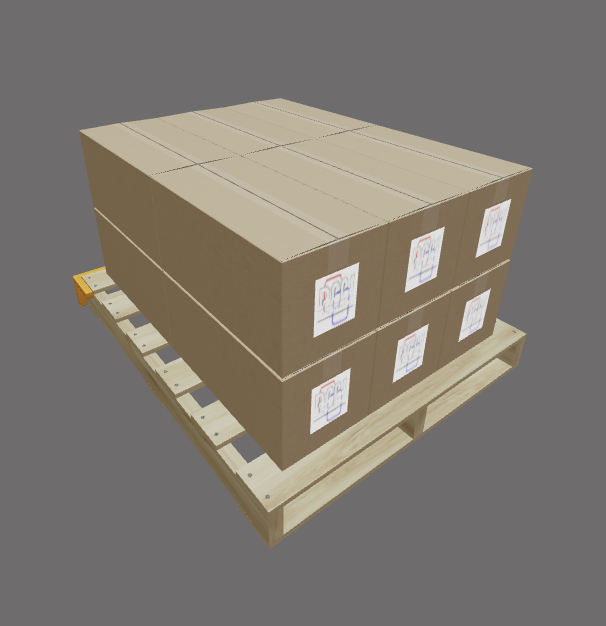
How to build or edit a recipe
I-RD Mobile provides three main options:
- Local Project: Creating a brand-new recipe or opening the last edited project locally on your device.
- Upload Project: Uploading an existing recipe from a JSON file stored in your device.
- Servers: Connecting to authorized servers (configured by your organization in the I-IA Suite) to import unassigned recipes directly from your production system, through secure Cloudflare-based connectivity.
When first opening the app, if you directly create a Local Project, the recipe info shown will be based on default properties. After that, every time you open the app it can show the information of the last recipe edited on your device.
While uploading a project and importing it from a server are very similar options, the first one searches your local files, while the importing option requires that your user and company have access to at least one authorized server configured in the DPPS infrastructure (typically via Cloudflare tunnels) and that the server is online.
As importing a local file is a well-known procedure, the following guide focuses on showing how to connect to a server for importing a remote recipe. This process requires signing in with your company account to access servers authorized for your profile. However, I-RD Mobile can also be used in Guest Mode for creating, uploading, and editing projects locally on your device. The included screenshots illustrate each step clearly.
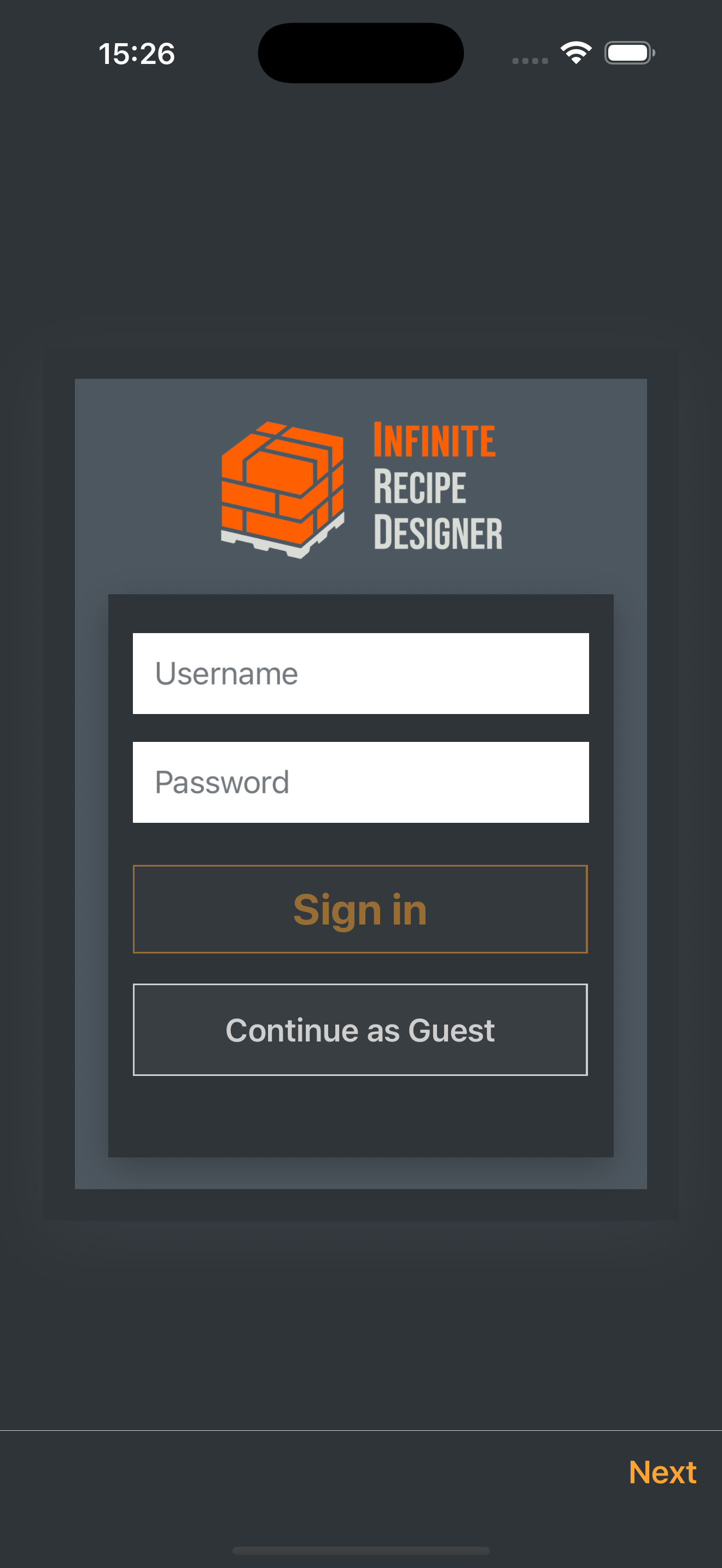
Step 1: Log in or continue in Guest Mode
When opening I-RD Mobile, the Login Screen allows authenticating with your company account to enable communication with remote servers through secure Cloudflare tunnels. If you do not need remote connectivity, you may continue in Guest Mode to work exclusively with local or uploaded JSON projects. Guest Mode disables external server access but keeps all design tools fully available.
Step 2: Ensure connectivity and server availability
If you plan to import or export recipes through a server, ensure that your device has internet access and that your industrial system server is online and properly configured within the DPPS Infinite infrastructure (such as ServerConnect services and their associated Cloudflare tunnel). These configurations are usually established during commissioning and training provided by DePeuter Packaging Solutions. If your system does not yet include these services or requires additional setup, you may contact DPPS to request them or receive further assistance.
Step 3: Open the I-RD Mobile App
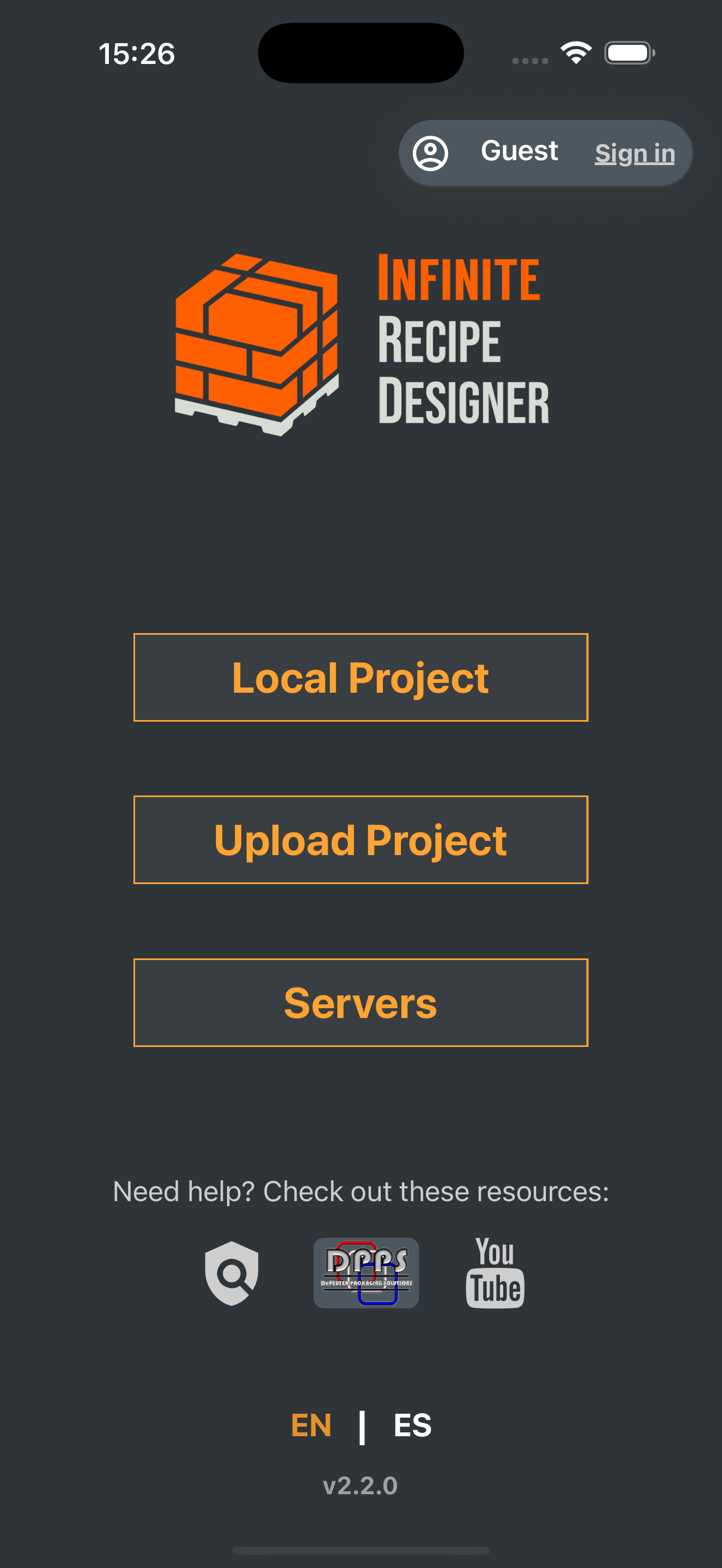
After logging in (or continuing as a Guest), the Home Screen shows the options “Local Project,” “Upload Project,” and “Servers.” The “Servers” option is enabled only when logged in with a valid company account. Tap “Servers” to access the list of authorized servers available to your user.
Step 4: Select a Server
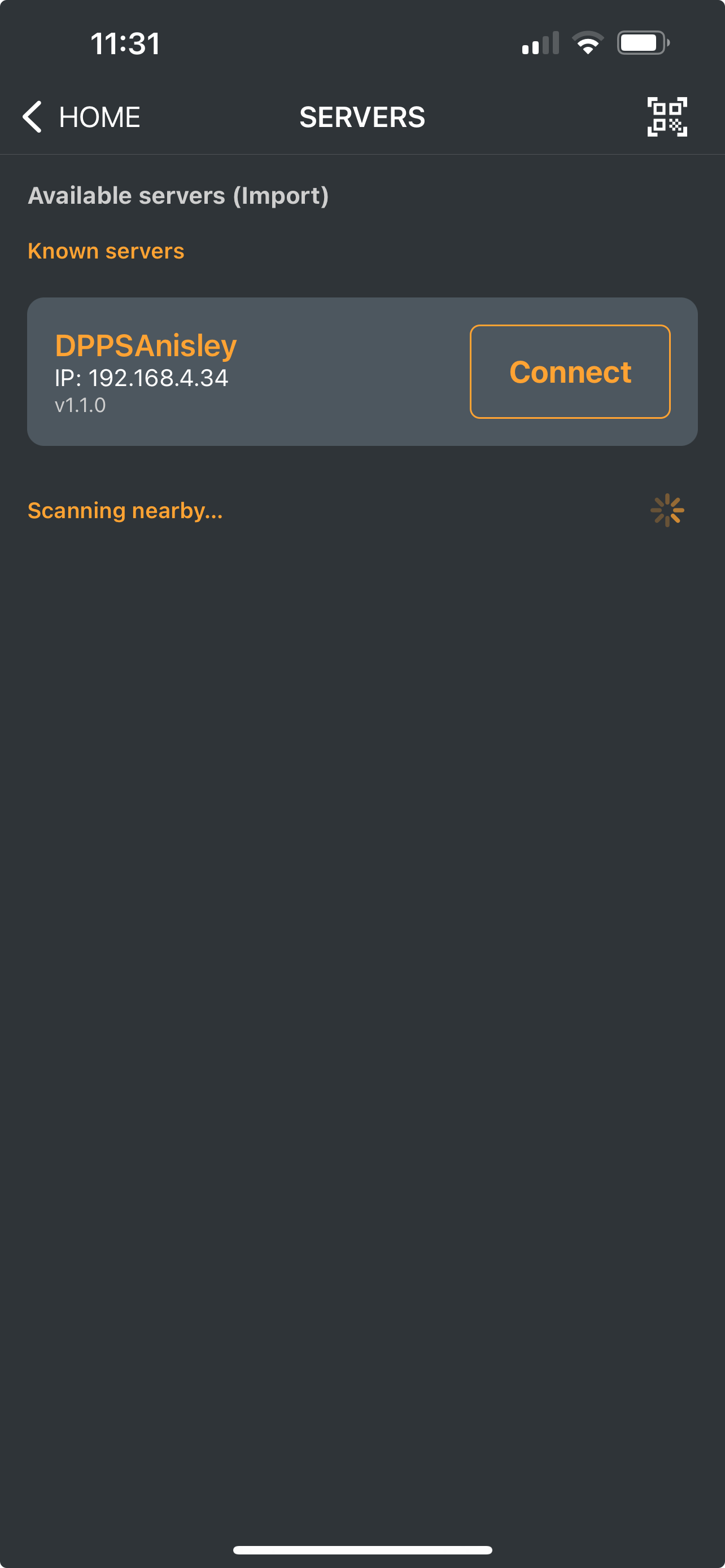
In the “Servers” section, you will see the servers that have been configured and authorized for your user or company profile. You may connect by selecting a server from the list or by scanning its corresponding QR code for faster access. QR codes are generated for each authorized server and can be provided by DPPS once the required connectivity services have been installed and enabled. After connecting to a server, the “RECIPES” screen will display the list of available recipes retrieved from that system.
Step 5: Import or Select a Recipe
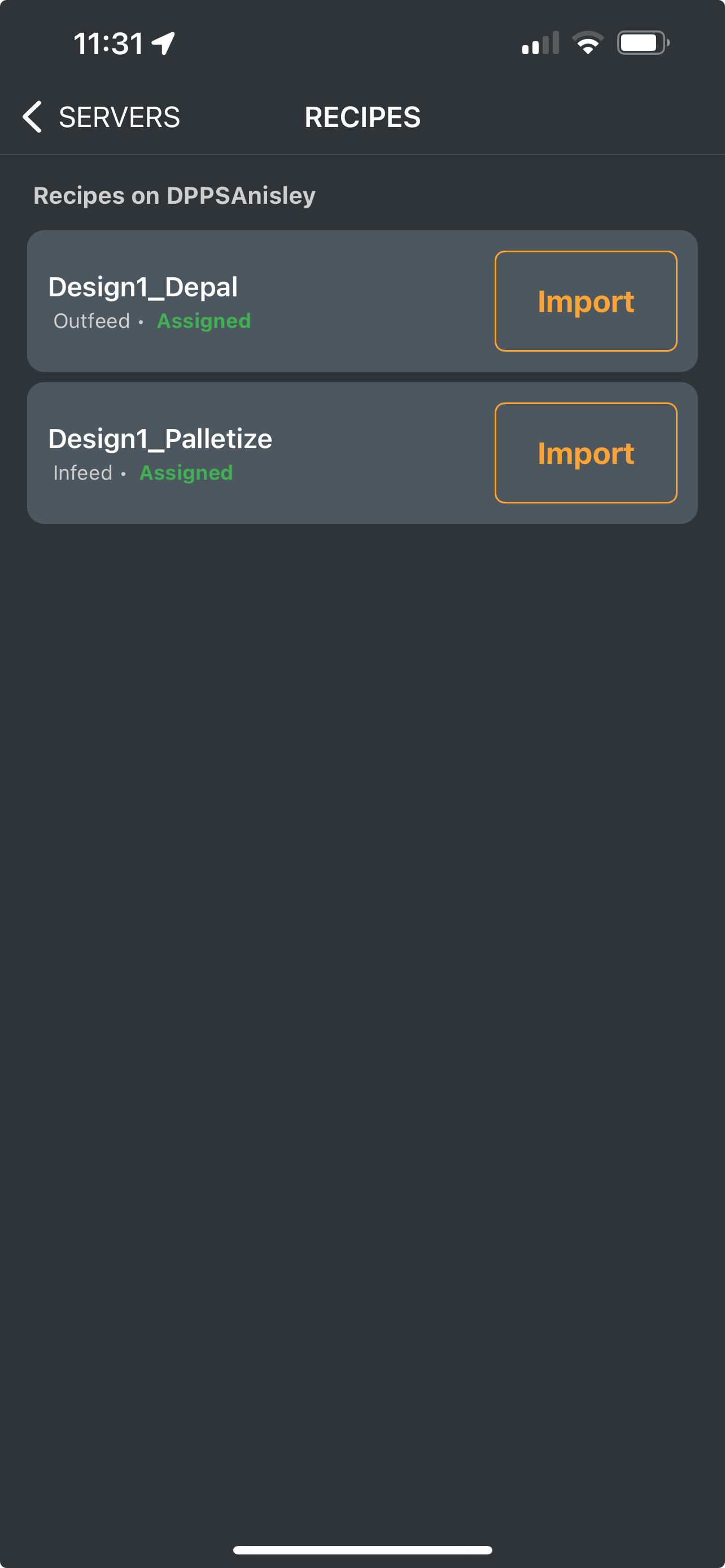
Each recipe indicates its name, type (infeed/outfeed), and status (assigned or unassigned in the industrial HMI). Press “Import” next to the recipe you want to load into I-RD Mobile. Server import is only available when logged in; Guest Mode users may only work with local or uploaded projects.
Step 6: Modify the Recipe Data and Content
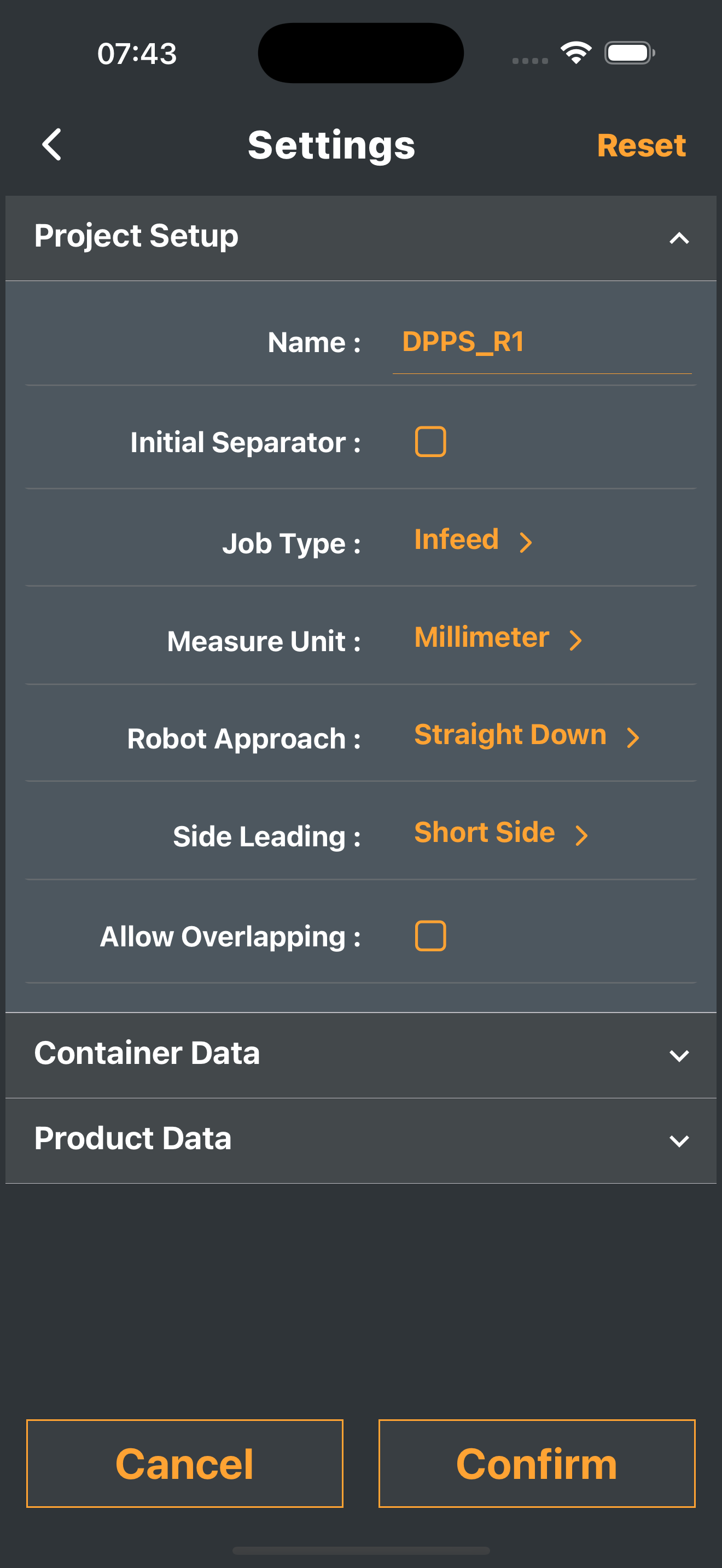
Once the recipe is loaded into I-RD Mobile, the settings screen is displayed. This screen is identical whether the project originated from a server, a JSON file, or a new local project. The difference is the source of the populated data. Continue editing as needed using the available configuration tools.
Building or Modifying a Recipe
- Customize global project settings, including recipe name, job type (infeed or outfeed), units, robot approach, and product leading side.
- Use separate sections for container and product data to adjust dimensions and types.
- Define layer structure and job sequences using the layers list and work area tools.
- Run 3D simulations to validate job sequences, stacking patterns, and robot approaches.
Here is a step-by-step help guide for editing a recipe in the I-RD Mobile app, using your attached screenshots to illustrate each stage from configuration through export.
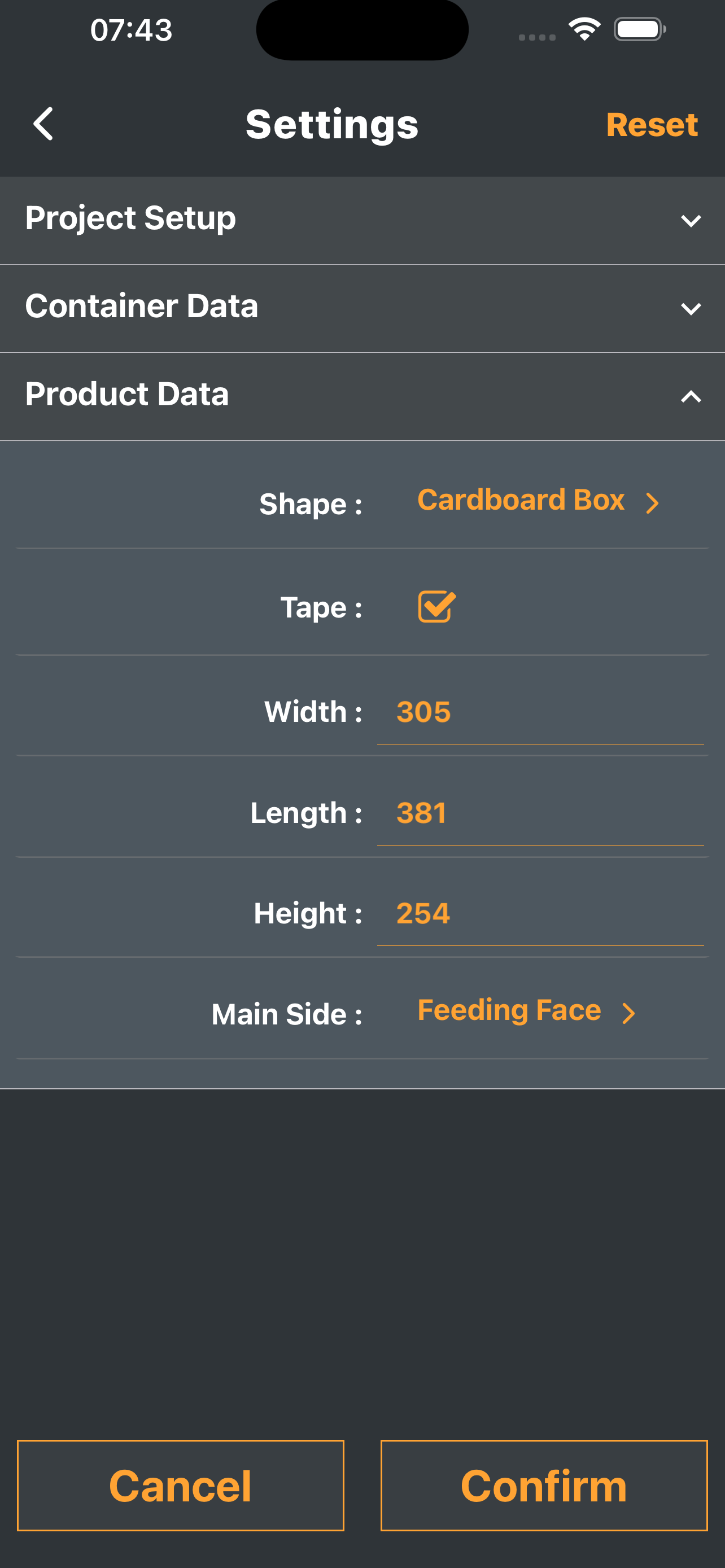
1. General Recipe Configuration
After importing a recipe, begin with global project settings:
- Enter or modify the recipe's name, job type (such as Infeed or Outfeed), measurement units, robot approach (main design principal: defining the default path robot will follow for each placement), and product side leading mode (orientation of the product when feeding the cel: short side leading or large side leading).
- Use the dedicated fields and switches for options like separator inclusion (only if your system can handle the automatic placement of slipsheets) and overlap permission (enable only if your system uses bags as the type of products).
- Expand the "Container Data" or "Product Data" sections for further setup or customization as desired. Main properties of each section generally refer to pallet or product dimensions and type.
- Tab the “Confirm” button once introduced all the information required for the recipe’s general settings. There might be some validations showing error messages, if that happens read the message details and verify product and container dimensions (they should be proportional allowing to handle with a limited number of products per layer).
2. Editing Layers and Jobs
Once you confirm the general settings of the recipe project, the Project screen is shown. This screen includes a work area with top and bottom bars. The top bar list 3 main options:
- Layers list icons to display and edit the layers sequence and jobs content in a row.
- Operations controls to undo or redo registered operations (up to 5).
- The link to access the simulation section for visualizing the recipe data in 3D and verifying the jobs sequence and final locations.
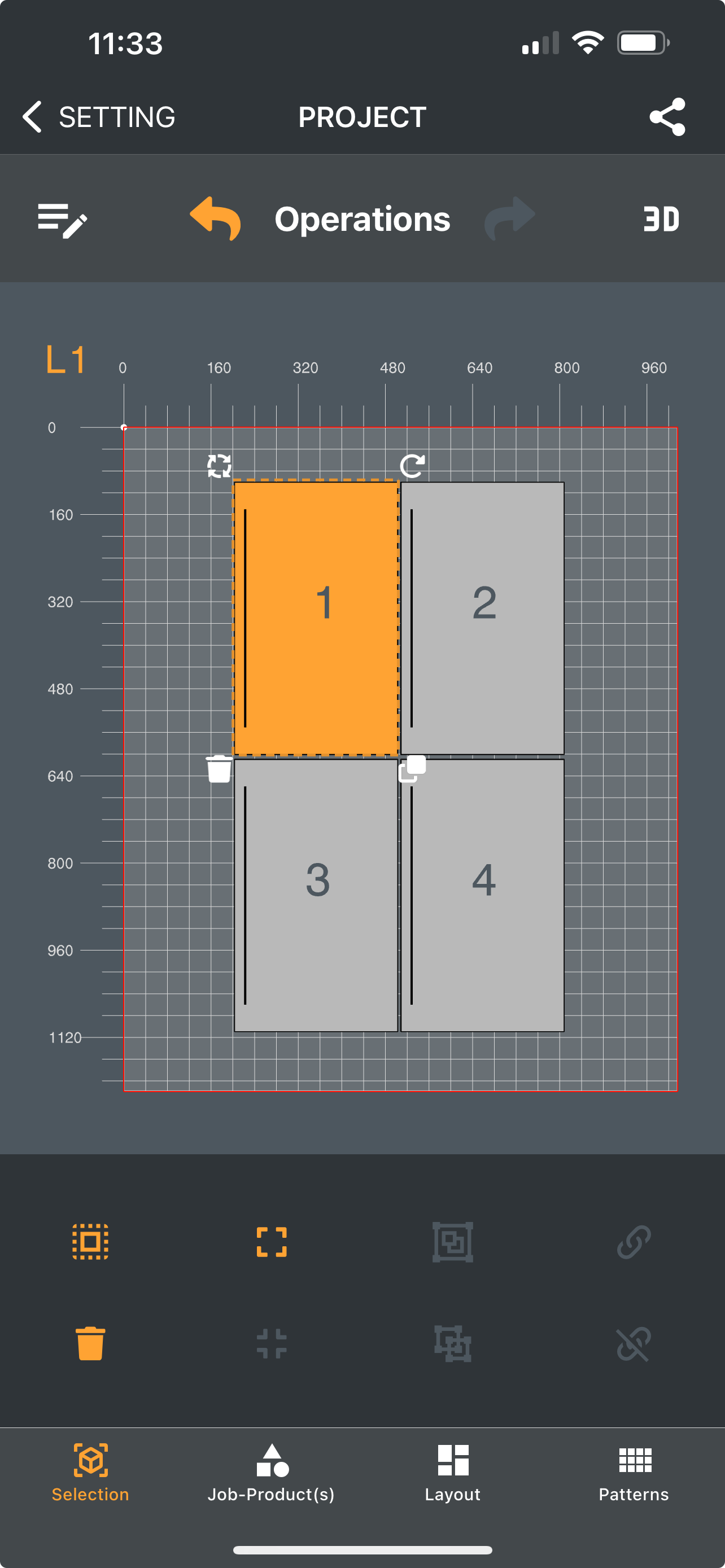
The work area shows a graphic 2D representation of the products content for the selected layer (one layer shown at once), which number is shown at the top left corner of the grid representing the container (pallet) area. If offsets were specified for the container, the available/editable area inside this grid will be redefined and you will notice by the red lines setting the boundaries.
The bottom bar includes several tools to select all products, delete the selected ones, align them, relocate jobs’ coordinates, rotate jobs and layout, and many other tools. Although the products inside the grid respond to drag and drop operations, you can always use the bottom tools bar to introduce precise x and y coordinates. Additionally, there is an option to apply predefined patterns and quickly populate your layers with standard industrial palletizing designs.
Proceed to personalize the structure of your recipe:
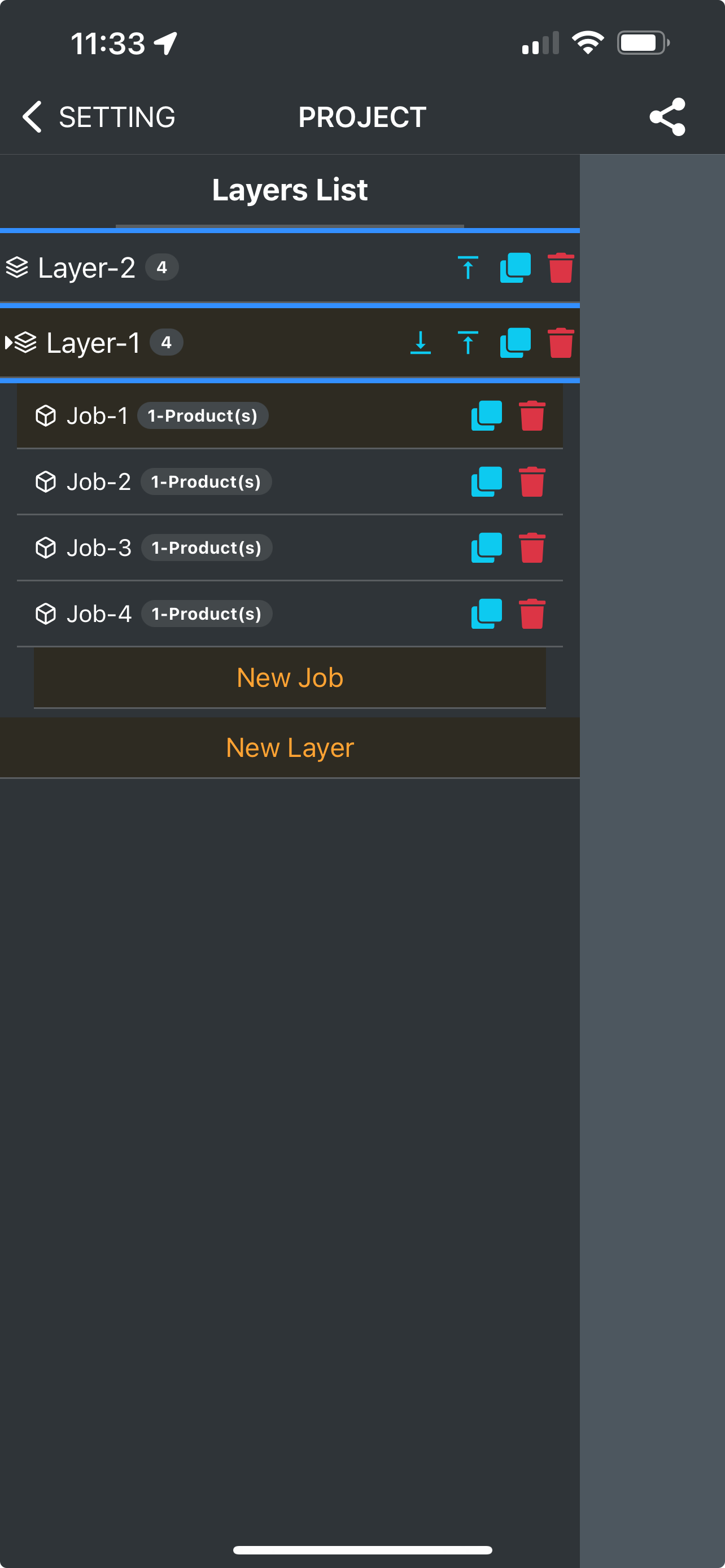
- You will see a layer list showing all existing layers and jobs. A single empty layer will be shown if the recipe being created is brand-new.
- Add or remove layers and jobs using the “New Layer” and “New Job” buttons.
- Each job can be individually customized for product handling in that layer, with icons available for quick action.
- Use icons for duplicating or deleting layers/jobs efficiently or drag and drop to alter its order inside the sequence.
3. Layout Editing
Switch to the layout view for detailed arrangement:
- Use the interactive grid to visually position products for each job inside the selected layer (grid responds to finger touch for products selection, drag and drop adjustments).
- Adjust size, spacing, and layout pattern with the selection and layout tools at the bottom.
- Patterns and positioning can be modified for optimal stacking or arrangement. Each product visualized includes the jobs number it belongs to in the sequence for fast verifications, although the robot approach to be used on each one requires more analysis to avoid collisions when verifying the placements sequence.
- Once a layer is properly designed, easily duplicate it from the layers list to add more layers to your project.
- Use the up and down arrows on each layer to add or remove a separator (generally a slipsheet) between the existing layers. The separator presence is shown as a blue line.
4. Simulation for Preview and Verification
Before finalizing:
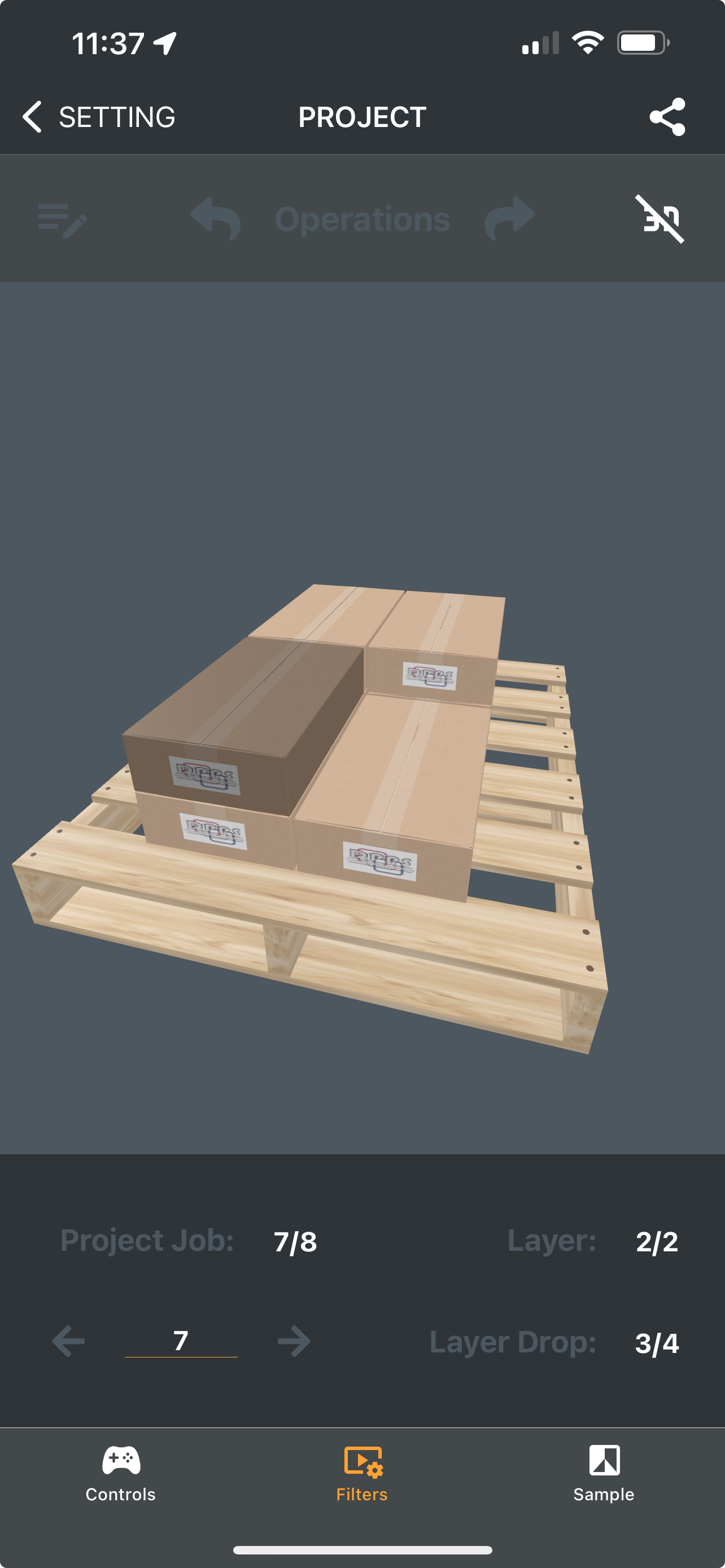
- Use the 3D or operational preview to simulate the arrangement and verify sequencing, validate product stacking, robotic movement, and overall recipe execution.
- Ensure all settings and layouts function precisely as needed for safe and efficient robotic operation.
- Confirm that all project parameters and layout choices work as intended for safe robot operation.
- Personalize the look of your product if desired; change the product’s material color and add an image as label are some of the options available.
5. Exporting the Edited Recipe
Once satisfied:
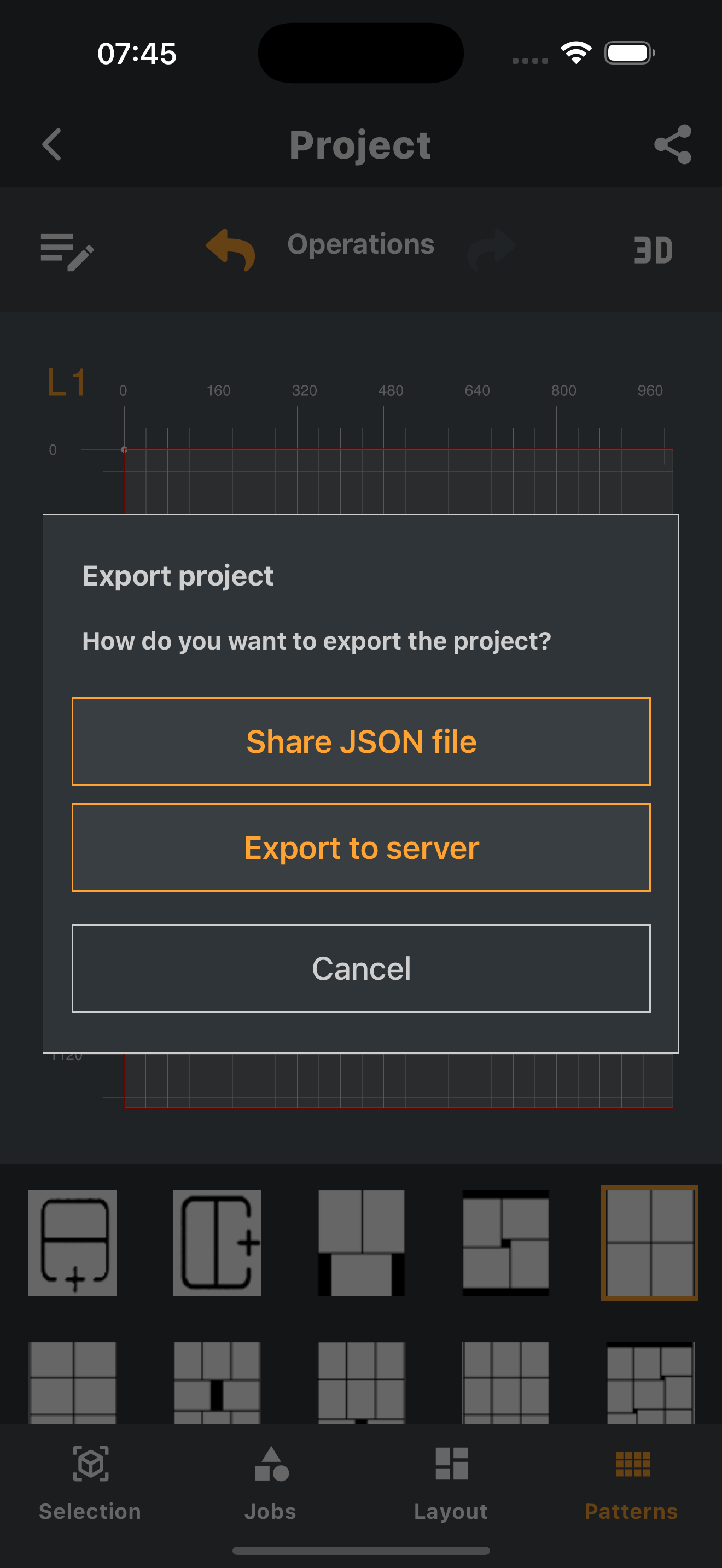
- Choose to export your recipe by tapping the relevant button at the top right corner of the Project screen.
- You will see prompt options:
- Share JSON file: for local export and portability.
- Export to Server: for deployment to a connected robot system.
Select the option that fits your workflow. If the option to export the recipe to a discoverable server is chosen, tab export for the desired destination once available servers are listed.
When exporting a recipe to an industrial system, the operation will override the recipe's content in the server only if the recipe name already exists and it is not being assigned for production at the moment of the request; otherwise, the recipe will be treated as a brand-new recipe and added to the database records for you to choose from your system before resuming operations.
This process enables efficient, organized recipe editing with clear visual feedback and flexible export choices, leveraging the real I-RD mobile interface throughout each step.